Edit a GPX file online
A GPX file someone sent you might start in the wrong place, include a wrong turn or pass through a closure. Open it in TraceLibre, revise the affected section and export a fresh copy.
Open the route plannerFree with a TraceLibre account.
Make changes to an existing track
Find the section you want to change
Import the file into the planner and zoom in on what you want to edit. Use the map and elevation profile together to identify the right part of the track when two sections cross.
Reroute or trim the track
Use the routing tool to move control points around a detour. To trim the start or finish, use the scissors and check both endpoints. Save the export under a new filename so you can keep the original.
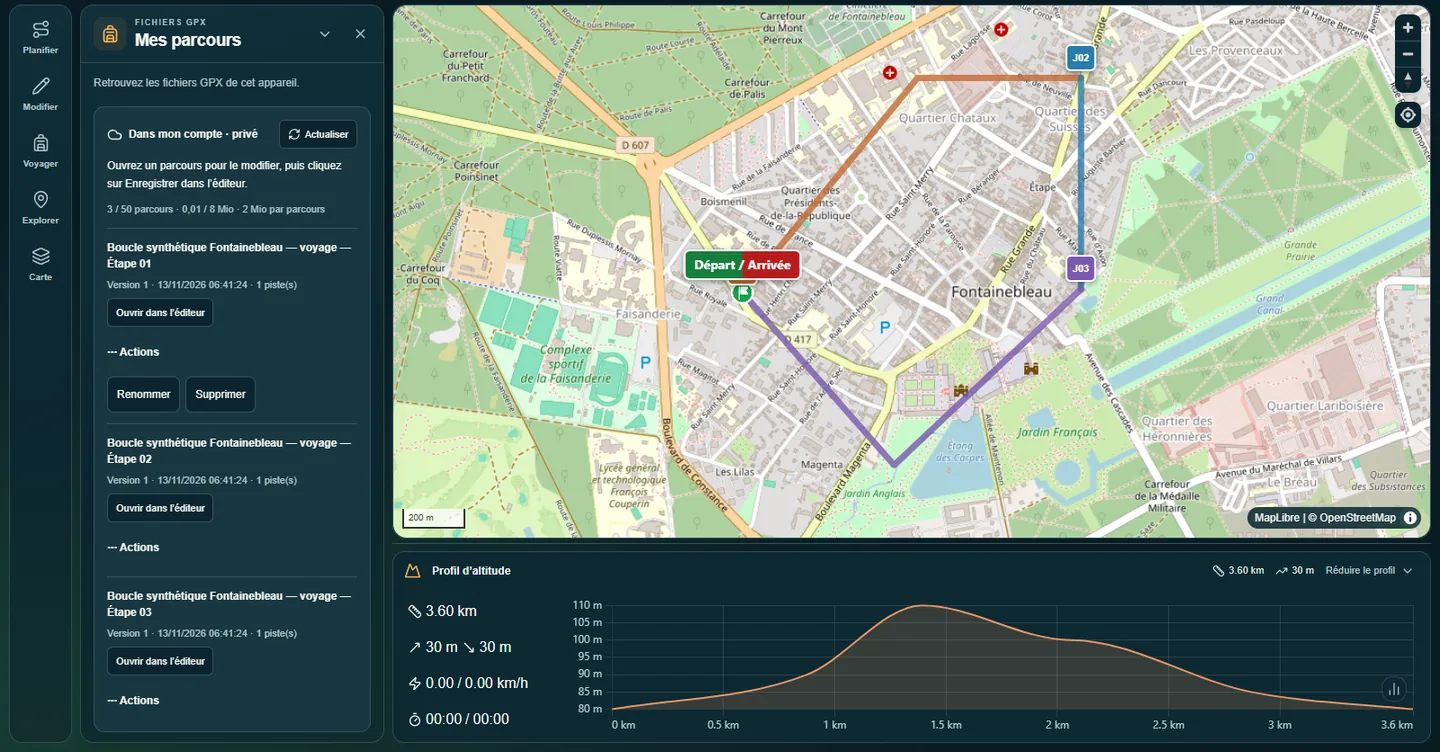
Example · rerouting around a closed bridge
Find the junction where you can leave the track and the one where you can rejoin it. Move the affected section to another crossing. Check the direction of travel and see how much distance the detour adds before downloading.
Reopen a track from My routes
Open the private route in the editor, update the track or its name, and save the changes. You can also remove a saved route from your account after confirming. To keep two variants, download the revised track under a different filename before updating your saved route.
What you can use in Community V2
The activity feed shows examples. Routes displays demo cards and GPX files imported into this browser, with a separate area for private routes saved to your account. Collections stay on this device. The profile area links to your local preferences and TraceLibre account. Events lists approved announcements and links to the organiser when available. Challenges are examples. Member posts, registration within TraceLibre and automatic challenge tracking are still planned.